Jak zrobić zdjęcie do dokumentów telefonem z Androidem
Większość telefonów z Androidem ma fabrycznie włączony filtr „trybu upiększania”. Pierwszym krokiem przy robieniu zdjęcia paszportowego na Androidzie jest wyłączenie tego filtra.
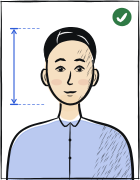
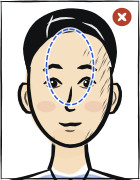
Szybka odpowiedź
Wyłącz tryb upiększania, tylny aparat, jednolita ściana, światło dzienne
Otwórz aplikację aparatu, znajdź przełącznik „Upiększanie” lub „AI Photo” w menu ustawień i wyłącz go. Przełącz na tylny aparat. Stań 1–2 metry od jednolitej ściany, twarzą do okna. Użyj statywu lub stabilnej podstawy na wysokości oczu. Neutralny wyraz twarzy. Przetwórz wynik naszym narzędziem pod kadrowanie właściwe dla danego kraju.
Krok po kroku
Wyłącz tryb upiększania (najważniejszy krok)
Otwórz domyślną aplikację aparatu, dotknij ikony koła zębatego i znajdź „Upiększanie”, „AI Photo”, „Smart Beauty” lub „Auto Enhance” — wyłącz to. Nazwy różnią się u poszczególnych producentów i wersji oprogramowania, więc wyłącz wszystko, co zawiera Beauty, AI, Smart lub Enhance. Samsung, Xiaomi i Oppo włączają to domyślnie, a powstałe zdjęcia nie przechodzą kontroli biometrycznych.
Przełącz na tylny aparat
Aparat przedni (selfie) ma obiektyw szerokokątny, który zniekształca proporcje głowy. Użyj głównego tylnego aparatu — 12 Mpix lub więcej to standard we współczesnych telefonach z Androidem.
Ustaw rozdzielczość zdjęcia na maksimum
W ustawieniach aparatu wybierz najwyższą dostępną rozdzielczość (zwykle 12 Mpix lub 50 Mpix). Dzięki temu zdjęcie będzie mieć dość szczegółów, by wydrukować je w rozmiarze docelowego kraju.
Stań przed jednolitą ścianą
Pusta ściana w kolorze jasnoszarym, kremowym lub czysto białym. Stań 1–2 metry od niej, aby nie rzucać własnego cienia.
Użyj światła dziennego z okna naprzeciwko
Idealne jest rozproszone światło dzienne z okna przed tobą. Unikaj lampy błyskowej, lamp sufitowych i wszelkich sztucznych źródeł światła.
Umieść telefon na wysokości oczu
Statyw, uchwyt na telefon lub stos książek na krześle. Obiektyw musi być dokładnie na wysokości oczu — pochylenie zniekształca proporcje głowy.
Użyj samowyzwalacza
Ustaw samowyzwalacz aparatu na 3 sekundy. Pozwoli to rozluźnić twarz po naciśnięciu spustu migawki, a przed wykonaniem zdjęcia.
Zrób 5–10 ujęć i wybierz najlepsze
Nawet przy tym samym przygotowaniu wyraz twarzy zmienia się z ujęcia na ujęcie. Zrób kilka zdjęć i wybierz to o najbardziej neutralnym wyrazie, z obojgiem oczu całkowicie otwartych i prosto ustawioną głową.
Najczęstsze pytania
01Mój Samsung / Xiaomi / Oppo ciągle wygładza skórę — jak to całkowicie wyłączyć?
W aplikacji aparatu: Ustawienia → Zdjęcie → wyłącz „Beauty Face” / „AI Photo” / „Auto Enhance” / „Smart Beauty”. Niektórzy producenci rozdzielają to na kilka przełączników — wyłącz każdy z nich. Jeśli przełącznik jest ukryty, zrób zdjęcie w trybie Pro lub Ręcznym, który omija większość filtrów.
02Czy mogę użyć zewnętrznej aplikacji aparatu, np. Open Camera lub Google Camera?
Tak, te aplikacje zwykle całkowicie omijają filtry upiększające producenta. Open Camera (otwartoźródłowa, darmowa) to niezawodny wybór — robi nieprzetworzone zdjęcia RAW lub JPEG bez żadnego automatycznego upiększania.
03Dlaczego moje zdjęcie z Androida wygląda „zbyt gładko” nawet po wyłączeniu trybu upiększania?
Niektórzy producenci Androida stosują dodatkową redukcję szumów na poziomie oprogramowania układowego, której nie da się wyłączyć w aplikacji aparatu. Przetestuj zewnętrzną aplikacją, np. Open Camera; jeśli efekt nadal jest zbyt gładki, fotografuj przy dobrym świetle dziennym i skróć czas naświetlania (w trybie Pro można ustawić ISO 100–200 dla czystszego obrazu).
Powiązane poradniki
Pomiń kroki ręczne
Wgraj portret — Anfas.Pro automatycznie zastosuje kadrowanie, tło i ramkę biometryczną właściwe dla danego kraju. Bezpłatny podgląd przed płatnością.