Jak usunąć tło ze zdjęcia paszportowego
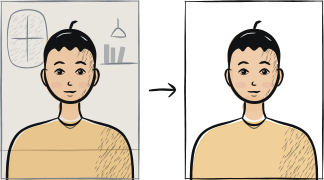
Czysta podmiana tła zależy od trzech rzeczy: ostrego oryginału, czystych krawędzi wokół włosów i dokładnie tego odcienia, którego wymaga twój dokument. Poniższe kroki obejmują wszystkie trzy, a także sprawdzenie narożników, od którego zaczynają automatyczne portale.
W tym artykule · 4 rozdziały
Szybka odpowiedź
Ostry oryginał, czyste krawędzie, właściwy odcień
Podmień tło naszym narzędziem, sprawdź, czy wszystkie cztery narożniki mają dokładnie ten sam odcień, i wyeksportuj ponownie w pełnej rozdzielczości.
Krok po kroku
Zacznij od ostrego oryginału
Usuwanie tła jest tak dobre, jak materiał wejściowy: rozmyte, ciemne lub mocno skompresowane zdjęcie źródłowe daje brudny wycinek z artefaktami. Użyj ujęcia z tylnego aparatu w wysokiej rozdzielczości przy dobrym świetle dziennym.
Wybierz narzędzie radzące sobie z krawędzią włosów
Uniwersalne automatyczne narzędzia do wycinania zostawiają poświatę wokół włosów i gubią cienkie kosmyki. Nasz mechanizm usuwania tła jest trenowany na fotografii portretowej do dokumentów i podstawia odcień wymagany przez twój kraj, a nie ogólną biel.
Sprawdź wycinek na kontrastowym kolorze
Obejrzyj wynik na podglądzie z czarnym lub czerwonym tłem, aby wychwycić artefakty krawędzi. Wszystko, co wygląda brudno na kontrastowym kolorze, nie będzie też czyste na finalnej bieli.
Zastosuj docelowy kolor tła
Odcień wyznacza kraj, a nie narzędzie: jasna szarość lub kremowa biel dla państw strefy Schengen, czysta biel dla Indii, Chin i Wietnamu. Weź dokładny przepis ze strony swojego kraju i ustaw go przed eksportem.
Sprawdź jednolitość narożników
Po zastosowaniu nowego tła otwórz plik i powiększ każdy narożnik. Wszystkie cztery narożniki muszą mieć dokładnie ten sam odcień — automatyczne kontrole portali najpierw próbkują piksele narożników.
Wyeksportuj w pełnej rozdzielczości
Usuwanie tła często zmniejsza obraz. Wgraj ponownie źródło w pełnej rozdzielczości, jeśli narzędzie na to pozwala, albo użyj narzędzia zachowującego oryginalną rozdzielczość (nasze ją zachowuje).
Najczęstsze pytania
01Jak uzyskać jednolite tło bez edytowania zdjęcia?
Fotografując się bezpośrednio przed nim. Wystarczy gładkie białe lub jasnoszare płótno przypięte płasko do ściany: zachowaj 1-2 metry odstępu od ściany, aby twój cień na nią nie padał, weź światło z okna przed sobą i oprzyj telefon na wysokości oczu na stabilnej podstawie.
02Dlaczego wycinek zostawia poświatę wokół moich włosów?
Cienkie lub kręcone włosy to najtrudniejszy przypadek graniczny dla algorytmów wycinania. Rozwiązaniem jest zaczęcie od zdjęcia zrobionego na kontrastowym tle (ciemne włosy na jasnej ścianie, jasne włosy na ciemnej ścianie), aby algorytm lepiej wykrył krawędź.
Powiązane poradniki
Pomiń kroki ręczne
Wgraj portret — Anfas.Pro automatycznie zastosuje kadrowanie, tło i ramkę biometryczną właściwe dla danego kraju. Bezpłatny podgląd przed płatnością.