How to remove the background from a passport photo
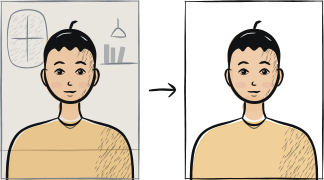
A clean background swap comes down to three things: a sharp original, clean edges around the hair and the exact shade your document asks for. The steps below cover all three, plus the corner check that automated portals run first.
In this article · 4 sections
Quick answer
Sharp original, clean edges, the right shade
Replace the background with our tool, check that all four corners are exactly the same shade, and re-export at full resolution.
Step-by-step
Start from a sharp original
Background removal works only as well as the input: a blurry, low-light or compressed source photo produces a poor cutout with artefacts. Use a high-resolution rear-camera shot under good daylight.
Use a tool that handles hair edges
Generic auto-cutout tools leave a halo around hair and miss thin strands. Our background remover is trained on portrait photography for documents and applies the shade your country asks for instead of a generic white.
Check the cutout under a contrasting colour
View the result with a black or red preview background to spot edge artefacts. Anything that does not look clean against the contrasting colour will not look clean against the final white either.
Apply the target background colour
The shade is set by the country, not by the tool: light grey or off-white for Schengen states, plain white for India, China and Vietnam. Take the exact rule from the page for your own country and set it before exporting.
Check the corners are uniform
After applying the new background, open the file and zoom into each corner. All four corners must read as exactly the same shade — automated portal checks sample the corner pixels first.
Export at full resolution
Background removal often downscales the image. Re-upload the source at full resolution if the tool offers it, or use a tool that exports at the original resolution (ours keeps the source resolution).
Frequently asked questions
01How do I get a plain background without editing the photo?
Photograph yourself against one. A smooth white or light grey sheet taped flat to a wall is enough; keep 1-2 metres between you and the wall so your shadow does not land on it, take the light from a window in front of you, and put the phone at eye level on a stable surface.
02Why does the cutout leave a halo around my hair?
Thin or curly hair is the hardest edge case for cutout algorithms. The fix is to start from a photo taken against a contrasting background (dark hair against a light wall, light hair against a dark wall) so the algorithm can detect the edge more easily.
Related guides
Skip the manual steps
Upload a portrait — Anfas.Pro applies the country-specific crop, background and biometric framing automatically. Free preview before payment.