Comment redimensionner une photo à la taille exacte de passeport, de visa ou d’identité
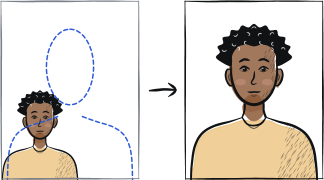
Redimensionner une photo à la taille passeport ne se résume pas à un recadrage. La photo doit correspondre aux dimensions cibles exactes (par ex. 35 × 45 mm), avec une résolution suffisante pour une impression nette (généralement 600 ppp), la tête occupant le pourcentage du cadre publié par votre propre pays.
Dans cet article · 4 sections
Réponse rapide
Taille du pays, DPI 600+, rapport de tête par pays
Identifiez la taille du pays cible (35 × 45 mm pour Schengen, 2 × 2 pouces pour les États-Unis, 45 × 35 mm pour le passeport indien). Réglez la résolution à 600 ppp minimum. Recadrez selon le rapport publié par votre pays : environ 70 à 80 % de la hauteur du cadre pour Schengen, 50 à 69 % pour les États-Unis. La limite de taille de fichier est propre à chaque portail.
Pas à pas
Identifiez la taille du pays cible
Visa Schengen : 35 × 45 mm. Passeport/visa des États-Unis : 2 × 2 pouces (51 × 51 mm). Passeport britannique : 45 × 35 mm. Passeport indien : 45 × 35 mm (4,5 × 3,5 cm) sur fond blanc, et uniquement si vous déposez votre demande ailleurs que dans un Passport Seva Kendra, où la photo est prise au guichet. Passeport chinois : 33 × 48 mm. Pour les autres, consultez notre guide pays par pays.
Convertissez les mm en pixels à 600 ppp
Pour 35 × 45 mm à 600 ppp : 827 × 1063 pixels. Pour 2 × 2 pouces à 600 ppp : 1200 × 1200 pixels. Une photo de 45 × 35 mm est le même rectangle noté en commençant par la hauteur : cela fait donc aussi 827 × 1063 pixels. Un DPI inférieur (300) est accepté sur certains portails mais donne un tirage plus doux.
Recadrez la tête au bon rapport
Le rapport de la tête est fixé par le pays, non par une règle universelle : environ 70 à 80 % pour Schengen, 50 à 69 % pour les États-Unis. En millimètres, du menton au sommet du crâne : environ 32-36 mm pour Schengen, 29-34 mm pour le Royaume-Uni et 25-35 mm pour les États-Unis. Reprenez le chiffre sur la page de votre propre pays.
Vérifiez que le fond est uniforme
Après le recadrage, les coins de la photo doivent afficher la même couleur. Utilisez un outil comme notre vérification de fond pour le contrôler avant l’impression.
Exportez à la bonne taille de fichier
Les limites varient beaucoup : le portail britannique demande entre 50 Ko et 10 Mo, tandis que d’autres plafonnent à quelques centaines de Ko. Une exportation de qualité à 600 ppp pèse généralement de 800 Ko à 2 Mo — compressez avec une qualité de 85-90 pour respecter la limite du portail.
Vérifiez la taille et les dimensions du fichier avant l’envoi
Ouvrez les propriétés du fichier sur votre ordinateur pour confirmer que les dimensions correspondent exactement à la spécification du pays. Certains portails rejettent les fichiers qui s’écartent ne serait-ce que d’1 mm de la spécification.
Questions fréquentes
01Quelle est la différence entre la taille en millimètres et en pixels ?
Les millimètres correspondent à la taille physique d’impression. Les pixels sont les dimensions numériques du fichier. Ils sont liés par le DPI : 35 × 45 mm à 600 ppp = 827 × 1063 pixels. Les portails nationaux indiquent généralement les deux — les millimètres pour le tirage imprimé et les pixels pour l’envoi numérique.
02Pourquoi ma photo est-elle pixellisée après redimensionnement ?
Vous l’avez probablement agrandie au lieu de la réduire. Une photo d’origine de 600 × 800 pixels ne peut pas être agrandie sans se pixelliser. Partez d’une source de plus haute résolution (l’appareil photo du téléphone à qualité maximale donne plus de 3000 pixels) et réduisez.
03Puis-je utiliser Adobe Photoshop, GIMP ou Pixlr pour cela ?
Oui — tout éditeur d’image proposant un redimensionnement en dimensions de pixels convient. La boîte de dialogue « Taille de l’image » de Photoshop permet de définir à la fois les pixels et les dimensions physiques. L’outil Anfas.Pro gère cela automatiquement selon les profils propres à chaque pays.
Guides connexes
Sautez les étapes manuelles
Importez un portrait — Anfas.Pro applique automatiquement le recadrage, le fond et le cadrage biométrique propres à chaque pays. Aperçu gratuit avant le paiement.