How to Scan Documents With Your Phone for Online 2026
Lay the document flat on a contrasting surface, light it with soft even light and no flash, shoot straight from directly above with the lens parallel to the page, capture all four edges, check sharpness, and save as a PDF within the size limit.
Key points
5 points- A document scan is not a face photo: you need a flat, fully legible page.
- Shoot straight from directly above, keeping the lens parallel to the page.
- Soft, even light with no flash removes glare and shadow.
- Capture all four edges and fill the frame with the page.
- Save in the format and size the portal asks for — usually PDF.
A document scan is not a selfie
Online portals — visa centres, government services, universities — often ask you to upload a document scan (passport page, birth or marriage certificate, diploma) separately from a face photo. These are two different files with different rules, and they are easy to confuse. A scan must show a flat, fully legible page shot straight from above, not an ordinary angled snapshot where the text is distorted and part of the page falls outside the frame.
How to capture a flat, sharp scan
You don't need a dedicated scanner — a phone is enough if you work in order and don't rush. Set up first: a flat table, good light, and a few seconds to check the result on screen before you upload it.
- Lay the document flat on a plain, contrasting surface (a dark table under light paper) and smooth out any folds.
- Use soft, even light; do not use flash — it causes a harsh glare and uneven lighting.
- Hold the lens straight above, parallel to the page, with no angle, to avoid perspective distortion.
- Capture all four edges and fill the frame with the page, leaving no extra background.
- Set focus and zoom in to confirm that every word, number and seal is legible.
- Save, then repeat for the back side or any other pages.
Use a scanner app
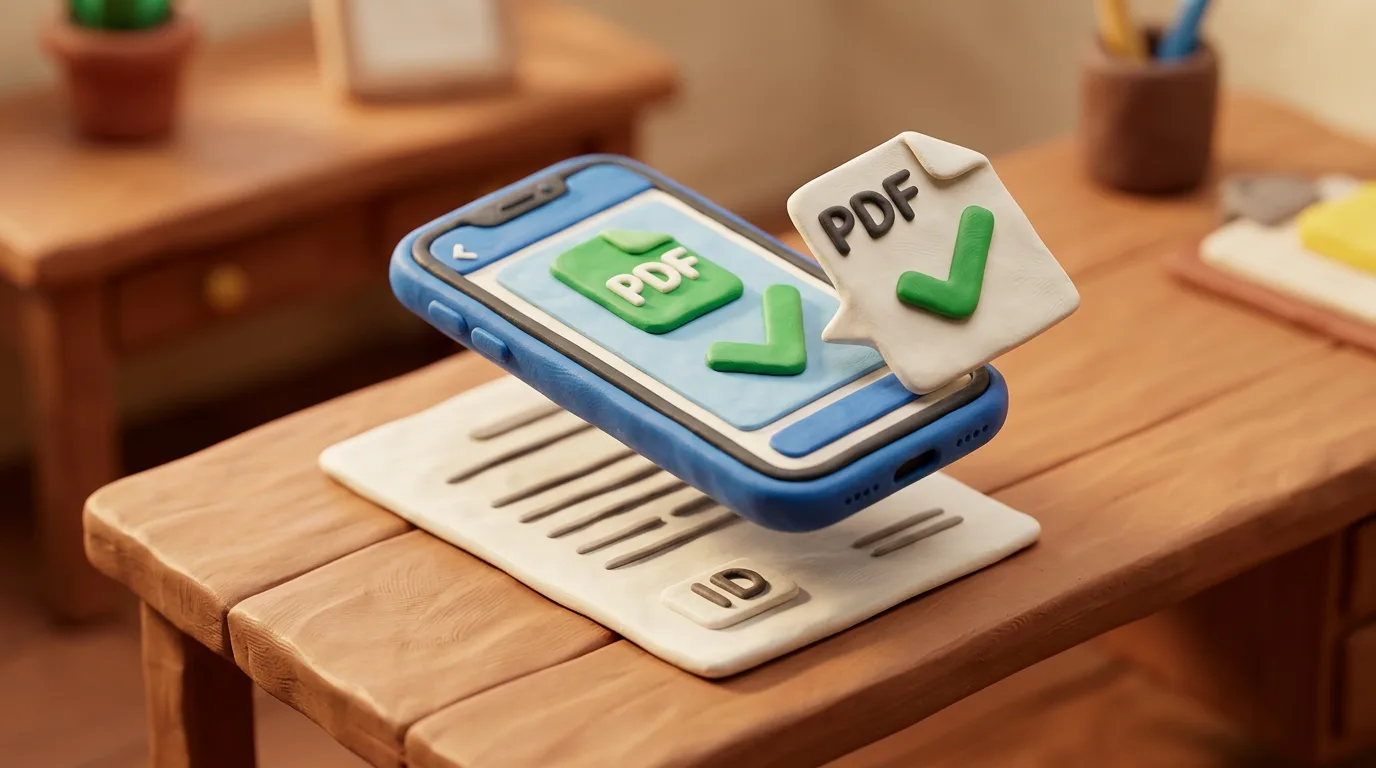
A built-in document scanner (for example in the Notes, Files or Camera app) or a separate scanner app automatically finds and crops the edges, de-skews the perspective, removes shadows and exports a multi-page PDF. It is faster, straighter and cleaner than a plain photo, and a contrasting surface helps the app detect the page edges more accurately.
Scanning on a dark, flat surface gives a page with no folds or shadows where all four edges are visible — with no signatures, digits or seals cut off.
Format, size and colour
Save the file in the format the portal asks for — for documents this is usually PDF, sometimes JPG. Stay within the size limit (often around 2 MB per file): if the file is too large, lower the resolution or compress the PDF, but keep the text sharp. Keep it in colour unless told otherwise, and create a separate file for each document with all of its pages and both sides. Give files clear names, for example "passport.pdf".
| Setting | Recommendation |
|---|---|
| Format | PDF (documents), sometimes JPG |
| Size | Within the portal's limit (often ≤2 MB) |
| Colour | Colour unless told otherwise |
Common mistakes
- An angled shot or a perspective-distorted image instead of shooting straight from above.
- Cut-off edges, clipped seals or missing pages of the document.
- Glare from flash or a glossy surface that hides the text.
- Blur, soft focus or a dark, under-lit photo.
- An oversized file or wrong format that the portal rejects.
06Questions
5 answers01How does a document scan differ from a face photo?
A scan shows a flat, fully legible page of a document, while a face photo is a portrait that follows biometric rules. Portals usually require them separately and in different formats.
02Can I just photograph the document instead of scanning?
Yes, if the photo is flat, sharp, glare-free and shows all four edges. But a scanner app crops, de-skews and removes shadows automatically, so the result is more reliable.
03Why shouldn't I use flash?
Flash creates a bright glare on paper and uneven lighting, which makes part of the text unreadable. Soft, even, diffused light works much better.
04What format should I save the file in?
Save it in the format the portal asks for — for documents this is mostly PDF, sometimes JPG. Stay within the size limit and keep it in colour unless told otherwise.
05What about a double-sided or multi-page document?
Scan every page and both sides, combining them into one PDF file per document. Do not mix different documents in a single file.
07Official sources
- GOV.UK — Uploading evidence as part of your visa application
gov.uk - U.S. Department of State — Scanning and Uploading Tips
travel.state.gov - U.S. Department of State — Tips to Scan Your Documents with Your Smartphone (PDF)
travel.state.gov - U.S. Department of State — Scan Collected Documents
travel.state.gov
Author: Yevhen Kravchenko. Published . Checked against official sources on .
Make your photo to the current rules
Pick your document and upload a selfie — we crop it to size, replace the background and check it. Free. The sizes come from the same official sources as the news.