India passport photo rejected — Passport Seva reasons and how to fix each
Most Indian applicants never submit a printed photo: at a Passport Seva Kendra or Post Office PSK the photograph is captured at the counter along with your biometrics. Printed photos are needed only when the application goes through a District Passport Cell, a Speed Post Centre or a Citizen Service Centre, and for certain annexures — and that is where the rejections happen. This guide covers the seven common causes on that printed route.
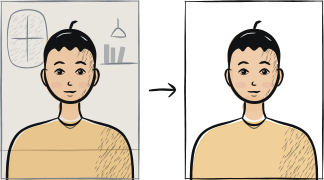
Fast diagnosis
Key checks: background not white, photo size, how the prints are affixed
The three common Indian passport photo rejections are: a studio-default grey background instead of white, a print at a size other than 4.5 × 3.5 cm — studios often default to 50 × 50 mm — and photos affixed to the form the wrong way round, with the signature or stamp landing on the wrong one.
7 common rejection checks
Background not plain white
The instructions ask for a plain white background. Grey, off-white and cream all fail, and many studios default to grey — say "white background" when you order.
Wrong size
The Indian specification is 4.5 × 3.5 cm (45 × 35 mm), the same proportions as a Schengen photo — not a square. Ask the studio for "4.5 by 3.5 centimetres, white background".
Smile or non-neutral expression
Any smile is rejected. Mouth closed, jaw relaxed, looking straight at the camera.
Glasses with glare
Glasses can be worn if the eyes are fully visible and there is no glare. In practice even small reflections cause rejection, so removing them is safer.
Eyebrows or forehead covered
Eyebrows must be visible. Hair across the forehead fails the check.
Photo printed on regular paper
The print has to be on photo paper. An inkjet print on ordinary paper is rejected at the counter.
Photos not affixed to the form as the instructions require
For a District Passport Cell, Speed Post Centre or Citizen Service Centre application, affix two 4.5 × 3.5 cm photos to the printed form — the first on page 1 with nothing written across it, the second on page 3, which is then stamped and signed across by the Head of Office. Getting the two the wrong way round is a paperwork rejection, not a photo one.
5-step recovery checklist
Check your appointment type first: at a Passport Seva Kendra or Post Office PSK the photograph is taken at the counter, so there is nothing to print.
For a District Passport Cell, Speed Post Centre or Citizen Service Centre application, order the photo as "4.5 by 3.5 centimetres, plain white background".
Or take it at home: stand against a white wall under daylight, use the rear camera, keep the expression neutral.
Affix two prints to the printed form — page 1 clear of any writing, page 3 stamped and signed across by the Head of Office.
Take off glasses if they catch any glare, and keep hair off your eyebrows and forehead.
Frequently asked questions
01Do I need to bring a printed photo to my Passport Seva appointment?
Not to a Passport Seva Kendra or a Post Office PSK. There the photograph is captured at the counter together with your fingerprints, so a studio print is money spent for nothing. Bring printed photos only if your appointment is at a District Passport Cell, a Speed Post Centre or a Citizen Service Centre, or if an annexure you are filing asks for one.
02Can I use the same photo for a Tatkal application?
Yes, if it meets the standard specification. Tatkal uses the same 4.5 × 3.5 cm white-background photo as the normal route, on the same routes that need a printed photo at all. The difference is the processing speed, not the photograph.
03What if I am applying online through Passport Seva?
The online form does not ask you to upload a photograph. You fill in and submit the application, book an appointment, and the photograph is taken at the Passport Seva Kendra counter with your fingerprints. Bring printed photos only if your appointment is at a District Passport Cell, a Speed Post Centre or a Citizen Service Centre.
Other rejection guides
Show all 33Collapse







Reshoot in 2 minutes
Upload a fresh portrait — Anfas.Pro applies the correct crop, background and biometric framing automatically and shows the result before you pay.